
Thermalright Trofeo Vision
4.3Editor score
9.16 inch wide LCD
USB-C plug and play
TRCC software support
LCD screens for PC cases transform your computer into a dynamic display hub. These panels let you monitor temperatures, fan speeds, and system stats in real time. They also show custom animations or media, adding a unique visual flair to any gaming or workstation setup.
We evaluated ten leading models based on resolution, connectivity options, software features, and ease of installation. Each product was assessed for compatibility with common cases and its ability to run smoothly on modern Windows systems. Our goal is to help you find the perfect display for your specific hardware needs.
Each pick highlights key strengths like touchscreen support, magnetic mounting, or dedicated cooling integration. We focus on what matters most for builders and enthusiasts looking to upgrade their rig. Keep in mind that pricing and availability can change quickly on major retail platforms.
4.3Editor score

4.4Editor score

4.2Editor score
As an Amazon Associate we earn from qualifying purchases.
This table provides a side-by-side overview of all ten models. Compare their screen sizes, resolutions, connectivity methods, and unique features to decide which fits your build requirements best.




The Lian Li SM088X stands out as a top choice for builders seeking a versatile LCD screen for PC case integration. With a solid rating of 4.4 stars, it offers an 8.8-inch display that balances size and usability perfectly. Its standout quality lies in its ability to function as a secondary monitor without using GPU ports, making it ideal for streaming or monitoring setups.
We may earn a commission when you buy through this link, at no additional cost to you.
Using L-Connect 3 software, you can customize themes, upload videos, and control lighting effects seamlessly. The diffused ARGB strip adds aesthetic value, syncing with your system for a cohesive look. Installation is flexible, supporting height and tilt adjustments via brackets or adhesive pads. You can even switch temperature units between Celsius and Fahrenheit for better personalization.
While the setup requires attention to specific screw types to avoid damage, the trade-off is a secure and stable mount. Some users may find the software interface requires initial exploration, but the payoff is a highly personalized display experience. The compact design ensures it fits without overwhelming smaller cases.
This screen is perfect for enthusiasts who want a mix of functionality and style. Whether you prioritize stats monitoring or visual flair, the SM088X delivers both. For those building a custom rig, this model provides the flexibility and quality needed to elevate your PC case aesthetics.
Connect via USB to display hardware stats or media without taxing your main GPU ports.
Integrate diffused ARGB lighting that syncs with your system for a unified aesthetic.
We may earn a commission when you buy through this link, at no additional cost to you.
The darkFlash V92 is designed specifically for PC case builds that prioritize system monitoring. Rated 4.1 stars, this 9.2-inch IPS panel delivers sharp visuals with wide viewing angles. It displays CPU, GPU, RAM, and fan speeds clearly, making it easy to keep tabs on your system health from a distance.
We may earn a commission when you buy through this link, at no additional cost to you.
Station Space software allows you to use free themes, plugins, and even weather or stock widgets. The slim aluminum body ensures it doesn't clutter your build while maintaining a premium look. You can connect via USB-C or internal 9-pin headers, offering flexibility depending on your motherboard layout.
A key consideration is that the software must remain active for the display to work, which uses a small amount of system resources. Additionally, it only supports Windows 10 and 11, limiting its use for Linux or macOS users. However, the hardware quality is robust enough to withstand daily use.
Choose the V92 if you need a reliable sensor panel that focuses on data visibility. It is ideal for overclockers or streamers who want real-time stats. While software dependency is a factor, the clarity and widget options make it a strong contender for monitoring-focused builds.
The IPS panel ensures colors remain accurate and bright from any viewing angle.
Access weather, news, and stock widgets through the free Station Space software.
We may earn a commission when you buy through this link, at no additional cost to you.
The WOWNOVA 8 Inch screen simplifies the process of adding an LCD screen for PC case monitoring. With a 4.5-star rating, it features a quick self-developed software setup that lets you get started in just one click. The 8-inch panel is bright and offers full-view angles, making text and images readable from any position.
We may earn a commission when you buy through this link, at no additional cost to you.
It supports desktop mode, allowing it to function as an extended screen alongside your main monitor. Dynamic video themes are available, and you can upload your own clips for a personalized touch. The single USB-C or 9-pin cable connection reduces clutter, as no HDMI or extra power adapter is needed.
While the software is intuitive, you may need to check for updates to access new features. It is also limited to Windows 10 and 11, so Linux users might find it incompatible. However, the energy-saving features and automatic screen-off settings add to its user-friendly appeal.
This model is perfect for users who want a hassle-free installation. If you value simplicity and the ability to use the screen as a second desktop monitor, the WOWNOVA is a great fit. Its compact size and clear visuals make it a practical choice for any case.
Switch to desktop mode to use the screen as an additional workspace display.
Connect easily with one USB-C or 9-pin cable without extra power needs.
We may earn a commission when you buy through this link, at no additional cost to you.
Designed specifically for the Hyte Y60, the wisecoco 12.6 Inch Bar LCD Screen transforms that case into a media hub. With a 4.2-star rating, it offers a massive 12.6-inch display with 178-degree viewing angles. The included bracket ensures a seamless fit without needing extra screws, making installation straightforward.
We may earn a commission when you buy through this link, at no additional cost to you.
Its HDMI input allows it to serve as an external monitor for your laptop or console. The 60Hz refresh rate and fast response time ensure smooth visuals for games or movies. Built-in speakers add audio output, removing the need for external setups in compact environments.
While it lacks direct USB motherboard connectivity, the HDMI option offers broader compatibility beyond PC stats. You will need to source a compatible power cable, which may be an extra step for some users. However, the visual quality and speaker integration are significant advantages for entertainment.
If you own a Hyte Y60 or want a large display for media, this is an ideal choice. It excels in aesthetics and utility, blending tech with gaming room design. Consider this model if you prioritize screen real estate and multimedia capabilities.
Dual speakers provide sound output without needing external peripherals or cables.
Use HDMI to connect consoles or laptops for a versatile media experience.
We may earn a commission when you buy through this link, at no additional cost to you.
The Hosyond 8.8 Inch screen stands out for its touchscreen capability and broad device compatibility. Rated 4.0 stars, it uses HDMI input and a driver-free design, making it plug-and-play ready. This flexibility lets you connect it to Raspberry Pi, Xbox, or your PC for a versatile secondary display.
We may earn a commission when you buy through this link, at no additional cost to you.
The IPS panel provides true-to-life colors with a brightness of up to 520 cd/m². You can monitor stats using AIDA64 by connecting it to your GPU ports. While it is not a dedicated sensor panel, its hardware support allows for creative setups in different environments.
One limitation is that it requires an HDMI input for PC use, which means using a GPU port rather than a motherboard header. Additionally, there is no pre-installed software for direct stats, so you need to configure this separately. However, the touch feature adds interactivity that other models lack.
This is a great pick for tinkerers or Raspberry Pi enthusiasts who want a high-quality display. It balances affordability with touch functionality, which is rare in this category. Consider this if you need a secondary monitor that can double as a touch interface.
Works with Raspberry Pi, Xbox, and Windows systems for flexible connectivity.
Capacitive touch allows for direct interaction with apps or menus on screen.
We may earn a commission when you buy through this link, at no additional cost to you.
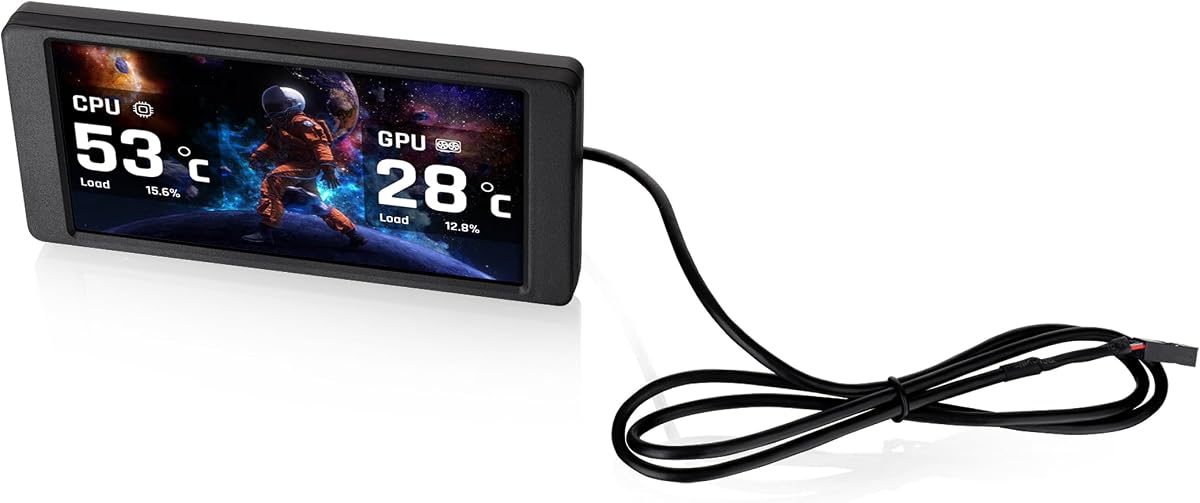
The Thermalright Trofeo Vision offers exceptional value for builders wanting an LCD screen for PC case integration. With a 4.3-star rating, it features a 9.16-inch wide LCD that tracks CPU and GPU temps easily. The slim build ensures it fits inside or outside cases without adding bulk to your setup.
We may earn a commission when you buy through this link, at no additional cost to you.
Setup is simplified through USB-C plug-and-play connectivity, eliminating the need for complex drivers. TRCC software provides preset themes and customization options, allowing you to design a unique interface. Real-time hardware monitoring ensures you always know your system status at a glance.
While the software is functional, it may lack the advanced features found in premium alternatives. The color customization is decent but not as extensive as other models. However, for the price, the reliability and clarity are hard to beat in this category.
This screen is perfect for budget-conscious users who still want quality stats. It balances performance and cost effectively, making it accessible to many builders. If you prioritize simple installation and reliable tracking, this is a smart choice.
At only 17mm thick, it fits easily in tight case spaces without bulk.
Use USB-C for quick power and data without driver installation.
We may earn a commission when you buy through this link, at no additional cost to you.
If you have a Thermaltake View 370 or 390 series, the 6.0 Inch LCD Screen Kit is designed to match it perfectly. Rated 3.8 stars, it offers a bright display for custom graphics and real-time data. The 1480x720p resolution ensures crisp images, making it ideal for showcasing personalization.
We may earn a commission when you buy through this link, at no additional cost to you.
TT RGB Plus 3.0 software improves compatibility and control, allowing you to upload custom graphics in formats like MP4 or GIF. You can view key component data such as RAM and CPU load easily. The system supports up to 20 custom images for your background.
The main limitation is its compatibility, which is restricted to specific Thermaltake models. If you have a different case, this may not fit or look cohesive. Additionally, the software dependency means you need to keep it running for full functionality.
This is a niche choice tailored for Thermaltake owners looking to enhance their setup. It provides high-quality visuals that integrate seamlessly with the case design. Consider this if you own compatible hardware and want a unified aesthetic.
The 720p resolution ensures sharp graphics and clear stats visibility.
Upload up to 20 custom images to personalize your display background.
We may earn a commission when you buy through this link, at no additional cost to you.
The GeeekPi 12.6 Inch screen is a powerful addition for Hyte Y60 owners seeking touch functionality. Rated 4.0 stars, it offers a 1920×515 resolution with 10-point multi-touch accuracy. This makes it responsive for gestures, ideal for navigating menus or adjusting settings on the fly.
We may earn a commission when you buy through this link, at no additional cost to you.
Built-in dual speakers enhance multimedia capabilities without extra devices. The display is plug and play, working with Windows and macOS without additional drivers. Its IPS panel ensures colors stay bright and consistent from any viewing angle.
While it excels as a secondary monitor, direct PC stats integration may require external software like AIDA64. It is more of a general-purpose display than a dedicated sensor panel. However, the touch and audio features offer a unique experience in this category.
Choose this if you want an interactive display for your Hyte Y60 build. The combination of touch and high resolution sets it apart from standard panels. It is best for users who value versatility over native stats monitoring.
Use up to 10 touch points for responsive navigation and gestures.
Enjoy audio output directly from the panel without external speakers.
We may earn a commission when you buy through this link, at no additional cost to you.
The Thermalright TV 9.16 LCD uses a magnetic suction design to simplify installation. With a 4.3 rating, it allows for quick removal and repositioning without screws. The 9.16-inch panel offers true-to-life colors and stable viewing angles for clear visibility.
We may earn a commission when you buy through this link, at no additional cost to you.
TRCC software controls monitoring functions and enables automatic startup with your computer. You can display static or dynamic images, including video playback. The taskbar background mode keeps it running efficiently in the background.
Before installing the software, you must confirm that the wiring is complete, which can be tricky for beginners. Additionally, keeping the software active is necessary for full features. Despite this, the magnetic convenience is a standout feature for modders.
This model is ideal for builders who value easy adjustments. The magnetic frame allows you to tweak positioning without tools. Consider this for a flexible installation that keeps your build clean and accessible.
Metal frame technology allows for quick and secure magnetic mounting.
Use TRCC software for monitoring, startup, and taskbar integration.
We may earn a commission when you buy through this link, at no additional cost to you.
The Thermalright Trofeo 6.86 provides a compact solution for smaller cases or liquid coolers. Rated 3.4 stars, it fits easily where larger screens cannot. The magnetic panel allows free movement within the chassis, making positioning flexible without tools.
We may earn a commission when you buy through this link, at no additional cost to you.
With 1280×480 resolution, it supports static and dynamic images well. TRCC software helps manage display parameters and startup. While the resolution is lower than larger models, it remains readable for critical stats like temperature.
This is a practical choice for tight builds or when you prefer less bulk. However, the smaller screen may limit visual details. If space is a priority, this model offers a balanced compromise between size and functionality.
Consider this for compact cases or liquid cooling setups. It adds a touch of customization without overwhelming the build. For minimalists, this is an efficient way to integrate an LCD screen for PC case monitoring.
The small size fits easily into tight spaces or cooler panels.
Move freely within the chassis without fixed positions.
We may earn a commission when you buy through this link, at no additional cost to you.
Choosing the right LCD screen for PC case integration depends on your specific needs and case type. Consider factors like size, resolution, connectivity, and software to find the best match.
Screen sizes range from 6 to 12 inches. Larger screens offer better visibility but may not fit small cases. Resolution affects clarity, with options like 1920×480 or 1280×800 being common.
Select a size that fits your case and a resolution that ensures text and stats remain readable.
Most screens use USB-C or 9-pin headers for power and data. Some require HDMI inputs, which use GPU ports. Ensure your motherboard has available headers or you have extra GPU outputs.
Prioritize USB-C or 9-pin options to avoid using valuable GPU ports for the display.
Software determines what you can display. Look for tools that support temperature monitoring, animations, and custom widgets. Some apps allow dynamic video themes or background taskbar modes.
Ensure the software is user-friendly and supports your operating system, typically Windows 10 or 11.
Mounting brackets, adhesive pads, or magnetic designs offer different installation experiences. Magnetic mounts are versatile but may not be as secure as screws. Check compatibility with your case model.
Choose a mounting method that aligns with your comfort level and the physical constraints of your case.
Some models include touch support for interactivity. This is useful if you want to navigate apps or adjust settings directly on the screen. It is less common and adds to the cost.
Decide if touch functionality is necessary for your use case before paying extra for this feature.
Certain screens are designed for specific cases like the Hyte Y60. Others offer universal brackets for broader use. Always check dimensions and mounting points before purchasing.
Verify that the screen fits your case panels and does not interfere with other components.
Most displays use low power via USB. However, some may need external DC cables. Check power requirements to ensure your PSU or USB headers can handle the load.
Prioritize low-power models to maintain system efficiency, especially for small form-factor builds.
Consider lighting and color matching. Screens with ARGB lighting can sync with your system for a cohesive look. White or black panels may suit different build themes.
Choose a design that complements your overall color scheme and lighting setup.
Install the screen carefully using the provided brackets or adhesive pads. Ensure all cables are connected securely to the motherboard headers or USB ports. Double-check that you are using the correct screws to avoid damage.
Install the necessary software before powering on the system. Follow the setup instructions to configure your display layout and themes. Keep the software updated for the best experience and bug fixes.
Avoid touching the screen directly with sharp objects. Clean the surface gently with a soft cloth to remove dust. Regularly check cables to ensure they remain secure and undamaged.
No, most models connect via motherboard USB headers like 9-pin or USB-C. This keeps your GPU ports free for graphics output. Some require HDMI inputs which do use GPU ports, so check your connection method.
Most software is Windows-only. However, some models support Raspberry Pi or Linux with drivers. Always check specific OS compatibility before purchasing if you use a non-Windows system.
These displays are low power, typically consuming under 5W. They draw from USB headers which can handle this load easily. You do not need to worry about significant power consumption for your PSU.
An 8 to 9 inch screen fits most standard cases comfortably. Larger screens like 12 inches may require specific cases like the Hyte Y60. Measure your available space before deciding.
Yes, most systems require the software to stay active for the display to function. Some offer auto-start settings so it launches with Windows. Ensure it runs in the background for constant monitoring.
Yes, many models support custom video themes in formats like MP4 or GIF. Use the provided software to upload and manage these files. Check specific video format support before uploading content.
Check the dimensions and mounting points before buying. Universal screens come with brackets, but some models are case-specific. Ensure you measure the clearance to avoid fit issues.
Use the vendor's software to select themes, widgets, or upload your own files. Some allow drag-and-drop layouts. Check the software features to find the best customization options for your needs.
The top picks highlight a range of options from budget to premium. The Lian Li SM088X offers a balanced experience, while the Thermalright Trofeo Vision provides excellent value. Choose based on your priority features.
Consider your case type and connectivity needs. If you need touch support or large screens, look at the GeeekPi or wisecoco models. Ensure the screen fits without blocking airflow or components.
Prices and availability change frequently. Check current listings to ensure you get the best deal. Always read the latest reviews for up-to-date information on compatibility and performance.