
Anycubic Kobra 3 Camera
4.5Editor score
DIY replaceable frame design
Ultra clear resolution output
Anycubic app integration
This guide compares the top 3D printer camera for remote monitoring to help you choose the best model for your workflow and budget needs.
Remote monitoring has become essential for modern 3D printing. A good camera lets you track progress, catch failures early, and generate time-lapses without constant supervision.
We analyzed ten highly rated cameras focusing on resolution, compatibility, night vision, and app features. Each product was evaluated for ease of setup and reliable remote access.
Every pick includes specs, pros, cons, and detailed usage notes. Prices vary by region and seller, so check current listings before purchasing your next camera upgrade.
4.5Editor score

4.3Editor score

4.1Editor score
The comparison below shows key specs for all ten cameras side by side. Use this table to quickly find the model matching your printer and feature needs.



This Creality Official Nebula Camera offers a complete remote monitoring experience with WiFi connection and auto time-lapse generation. Its compact design and user-friendly app make it easy to start tracking prints immediately.
We may earn a commission when you buy through this link, at no additional cost to you.
The camera connects via USB and integrates directly with the Creality Cloud app for remote access. Infrared night vision ensures 24-hour monitoring even in dark environments. You can stop prints quickly through the app if issues arise.
While it works best with supported Creality models like Ender-3 V3 KE, users with non-Creality printers may face compatibility issues. The setup is straightforward but limited to Creality ecosystems for full features.
Buyers seeking a reliable, feature-rich camera for Creality setups will find this top value. Its balance of automation, night vision, and app control makes it an excellent all-around choice.
Simply connect the cable to your printer, download the Creality Cloud app, and link to WiFi to begin monitoring without complex configuration.
The embedded code system captures an image each layer completes, allowing you to create stunning time-lapse videos without extra settings.
We may earn a commission when you buy through this link, at no additional cost to you.
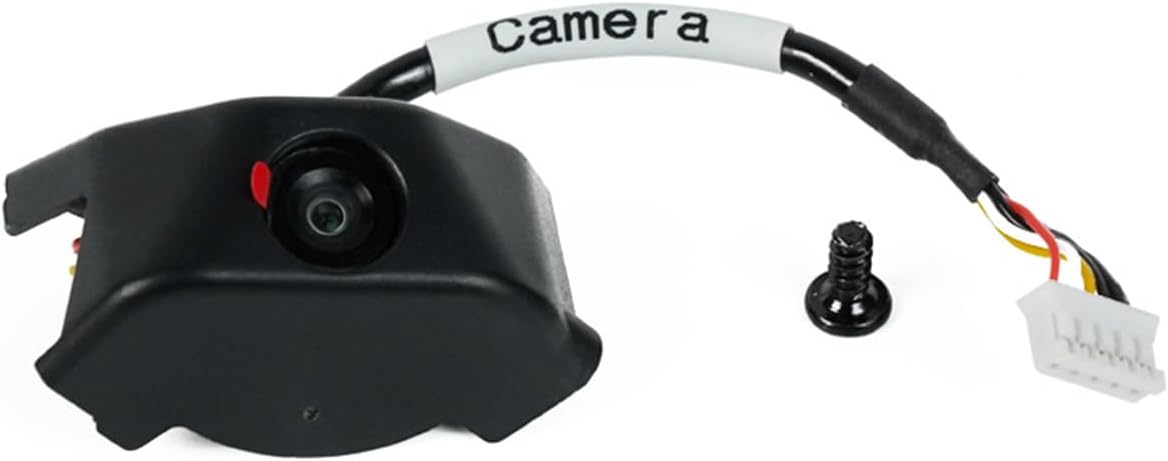
The Anycubic Kobra 3 Camera delivers excellent value with a unique DIY frame you can replace to match your style. Its ultra-clear resolution ensures detailed print visuals and easy issue detection.
We may earn a commission when you buy through this link, at no additional cost to you.
Through the Anycubic app, you can view your print status from anywhere to spot jams or layer adhesion problems early. This remote access helps save filament and time while improving success rates.
Customizing the frame adds fun but takes extra time during setup. The camera works best with Kobra series printers, so other users may need adapters for compatibility.
For Anycubic users or those seeking an affordable, customizable monitoring solution, this camera is a smart pick. Its clear imaging and app integration provide strong remote monitoring basics.
The frame can be replaced to create a unique look, allowing you to add personal creativity to your printing setup easily.
Access your prints anytime via the Anycubic app to identify issues quickly and improve your overall printing success rate.
We may earn a commission when you buy through this link, at no additional cost to you.
Designed for the FLASHFORGE Adventurer 5M and AD5X printers, this Official Camera Kit provides smooth HD monitoring with a dedicated app. It captures your entire process and lets you share videos with ease.
We may earn a commission when you buy through this link, at no additional cost to you.
Real-time monitoring through LAN browser or Flash Maker app lets you check prints anywhere. You can quickly resolve filament jams or stop problematic prints to save time and material.
The premium price reflects its optimized integration and HD quality. Users outside the Flashforge ecosystem won't get full compatibility, limiting its use for some buyers.
If you own a Flashforge printer and want a reliable, high-quality monitoring kit with full process capture, this is the ideal investment for your workflow.
The kit allows you to review and share print process videos, capturing exciting moments during your 3D printing journey effortlessly.
Installation guides and videos simplify setup, making this camera accessible for users without complex technical experience.
We may earn a commission when you buy through this link, at no additional cost to you.
This Nebula Camera variant emphasizes 24-hour monitoring with built-in night vision and a manual focus lens. Its 1080p resolution ensures clear images day and night.
We may earn a commission when you buy through this link, at no additional cost to you.
You can adjust the lens manually to get sharp focus on your prints. The camera connects via USB and supports real-time tracking via the Nebula camera interface.
Manual focus offers control but may frustrate users seeking fully automatic operation. Compatibility is limited to Creality Pad and V3 series printers.
Buyers wanting precise image control and reliable night monitoring for supported Creality printers will appreciate this model. It balances functionality with high-definition clarity.
Night vision supports auto switch and enables clear monitoring even in low-light conditions throughout the full printing process.
Rotate the lens to adjust focal length, achieving higher definition image quality tailored to your specific printer setup.
We may earn a commission when you buy through this link, at no additional cost to you.
This official Flashforge camera kit offers straightforward remote monitoring through the Flash Maker app. It integrates seamlessly with Adventurer 5M printers for convenient access.
We may earn a commission when you buy through this link, at no additional cost to you.
All necessary components are included, allowing quick setup without complex steps. You can view and control your printer remotely for greater flexibility in your workflow.
Compared to other kits, it lacks time-lapse or night vision features. Its value lies in ease of use and reliable official integration.
Owners of Flashforge Adventurer 5M who prioritize simplicity and official support will find this kit practical and reliable for their needs.
The kit is designed for simple integration with Flashforge printers, ensuring reliable performance without technical complexity.
View and control your printer from anywhere using the compatible Flash Maker app for added convenience and flexibility.
We may earn a commission when you buy through this link, at no additional cost to you.
Another Kobra 3 variant, this version emphasizes real-time remote monitoring and fast assembly. It connects via USB and offers ultra-clear resolution for accurate visuals.
We may earn a commission when you buy through this link, at no additional cost to you.
Technical support and strict testing ensure quality before delivery. The Anycubic app enables quick identification of issues like layer adhesion or filament jams.
Some users may prefer additional features like night vision. The camera focuses on reliability and clarity for Kobra 3 users primarily.
For quick setup and dependable remote monitoring within the Anycubic ecosystem, this model provides strong performance and support.
Simple steps to connect the camera to USB and insert it into the printer allow you to complete setup in minutes.
Professional consultants and lifetime technical support ensure you have help whenever issues arise during your printing experience.
We may earn a commission when you buy through this link, at no additional cost to you.
Designed specifically for the K1 series, this AI camera provides 1080P HD clarity and automatic time-lapse generation through Creality Cloud. It captures every detail with precision.
We may earn a commission when you buy through this link, at no additional cost to you.
Login to Creality Cloud to automatically generate videos after printing completes. The reserved camera interface makes installation effortless for K1, K1 SE, and K1 Max printers.
Night vision is not highlighted, so low-light monitoring might be limited. But for K1 owners, its integration and HD quality stand out.
K1 users seeking sharp imaging and automatic video creation will find this camera ideal. Its tailored compatibility ensures smooth operation.
The camera captures images in 1080P high definition, ensuring visuals are clear enough to spot even the smallest details.
Login to your Creality Cloud account to automatically generate time-lapse videos once the print finishes, simplifying sharing.
We may earn a commission when you buy through this link, at no additional cost to you.
This Nebula Camera includes anomaly monitoring that alerts you when problems occur and pauses prints to avoid waste. Its night vision and time-lapse features add value.
We may earn a commission when you buy through this link, at no additional cost to you.
The system reminds you timely of issues and pauses printing automatically. Manual focus lets you rotate the lens for HD quality tailored to your setup.
You need the Creality Cloud app to connect via WiFi. While effective, this requirement limits flexibility for users not tied to Creality.
For those who prioritize waste prevention through timely alerts and HD clarity, this model delivers strong protection and image quality.
The system identifies anomalies and pauses printing promptly, preventing filament waste and ensuring prints proceed only when ready.
Rotate the lens horizontally and vertically to adjust focus and achieve the best possible image quality for your prints.
We may earn a commission when you buy through this link, at no additional cost to you.
This Nebula Camera adds spaghetti detection to identify and alert you of printing errors. Its 24-hour monitoring and WiFi connection keep you informed throughout the process.
We may earn a commission when you buy through this link, at no additional cost to you.
Advanced spaghetti detection helps eliminate waste by alerting you to misprints. Time-lapse photography captures the entire process, allowing visualization and evaluation of progress.
Spaghetti detection is a newer feature that may need refinement. But its potential to prevent wasted filament is highly valuable.
Users wanting proactive error prevention and detailed process capture will find this model a compelling choice for their 3D printing setup.
Advanced spaghetti detection identifies errors and alerts you to misprints, helping eliminate waste and improve print quality reliably.
Monitor your printing status in real-time day or night via WiFi, ensuring efficient and accurate prints every time.
We may earn a commission when you buy through this link, at no additional cost to you.
This Flashforge kit offers HD video and allows exporting files to USB flash drive for viewing. The longer cable fits 3D printed enclosures easily for better mounting.
We may earn a commission when you buy through this link, at no additional cost to you.
Turn on the video switch to generate video files after printing completes. The official accessory ensures compatibility and smooth operation with Adventurer 5M and AD5X printers.
Night vision isn't included, so dark room monitoring may be limited. But its USB export and HD clarity serve well for documentation.
Owners of the AD5M series looking for easy video export and reliable monitoring will find this kit practical and well-designed.
Generated video files can be exported to a USB flash drive for viewing and sharing without cloud dependencies.
The longer cable fits 3D printed enclosures, making installation a breeze for custom setups.
We may earn a commission when you buy through this link, at no additional cost to you.
Selecting the right 3D printer camera requires balancing compatibility, features, and budget. Use this guide to identify key factors that affect your choice.
The most critical factor is whether the camera supports your specific printer model. Official kits from brands like Creality, Anycubic, and Flashforge work best with their respective machines. Third-party cameras often offer broader compatibility but may lack integrated features like auto time-lapse or anomaly detection.
Always verify your printer model and firmware requirements before buying. This avoids the hassle of returning incompatible products and ensures smooth operation from day one.
Night vision using infrared light like 940nm helps you monitor prints in dark or low-light environments. This feature is useful if your printer runs overnight or in a dim room. Without it, images may become grainy or dark, making issue detection harder.
If you plan to print 24 hours a day or in a workshop with poor lighting, prioritize cameras with built-in night vision. It adds significant value for safety and continuous monitoring.
Higher resolution like 1080P HD ensures clear images that show layer details and filament flow. This clarity helps you spot defects like stringing or warping early. Some models offer manual focus to fine-tune sharpness for your specific setup.
Look for cameras that specify resolution and support manual or auto focus. Good image quality directly impacts how well you can monitor and troubleshoot prints remotely.
A user-friendly app is essential for remote monitoring. Check whether the app supports mobile devices, PCs, or both. Features like remote stop, real-time alerts, and time-lapse generation are powered by the software.
Test the app's interface and responsiveness if possible. A reliable app ensures you can interact with your printer efficiently and without frustrating technical delays.
Time-lapse creation allows you to capture your printing progress automatically. Some cameras offer auto-generated videos without extra settings, while others require manual activation. This feature is great for sharing your work or documenting long prints.
If you enjoy showcasing prints, choose a camera with automatic time-lapse. It saves time and provides high-quality videos ready to share on social media or with friends.
Advanced cameras include anomaly detection to identify issues like filament jams or spaghetti failures. When detected, the camera can alert you or pause the print automatically. This prevents wasted filament and failed prints.
Look for models that offer this feature if you print expensive materials or long jobs. It acts as a safety net for your printing projects and improves overall reliability.
A camera that is easy to install saves time and frustration. Many official kits include clear guides or video tutorials. Check if you need extra adapters or wiring for your setup.
Choose cameras with simple USB or direct port connections. Minimal setup effort means you can start monitoring your prints sooner without technical delays.
Reliable customer service and warranty coverage protect your investment. Look for manufacturers offering technical assistance, warranty periods, and responsive support channels. This matters if you encounter issues during setup or use.
Prioritize brands with strong reputations for support. Having help available when needed ensures your camera system works smoothly throughout its lifespan.
Begin by connecting the camera to your printer via USB or designated port. Follow the manufacturer's guide to pair it with the corresponding app on your device. Ensure your printer and camera are on the same network for optimal performance.
Adjust the lens or focus to capture clear images of your print bed. Use manual focus options if available to sharpen details of layers and extrusion. Position the camera so it has a direct view of the nozzle area for best monitoring results.
Keep the lens clean and dry to prevent blurry images. Regularly check firmware updates and app settings to maintain performance. If issues arise, restart the camera and app to resolve connectivity or software glitches.
Most modern cameras rely on mobile or desktop apps for remote monitoring. Some allow access through web browsers via LAN. Check each model's requirements to confirm which method suits your workflow and device availability.
Some cameras support multiple printer brands, but many official kits are limited to one brand. Third-party cameras might offer wider compatibility. Always confirm compatible models before purchasing to ensure seamless integration.
Full HD 1080P is widely considered ideal for clear, detailed views. Lower resolutions may miss small defects. Higher resolutions offer more detail but may require more bandwidth. Match resolution to your needs and network capabilities.
Official Creality cameras are optimized for Creality models but may work with others via third-party integration. Third-party cameras generally support broader printer types. Verify compatibility lists to avoid setup issues.
Night vision usually activates automatically in low light if supported. No extra setup is typically needed. Ensure the camera is positioned so the infrared light can illuminate the print area effectively.
Some cameras generate time-lapses automatically after printing. Others require you to enable time-lapse in the app. Check the product description to understand if manual steps are needed to capture your print progress.
Many cameras support local LAN viewing via browser without internet. WiFi enables remote access over the internet. Choose a camera that supports your preferred viewing method based on your needs.
Your printer usually keeps running. You may lose remote access until the app reconnects. Keep an eye on print health through local monitoring or rely on anomaly detection features to catch issues.
Remote monitoring cameras have transformed 3D printing safety and convenience. Our top picks like Creality Nebula and Anycubic Kobra cameras deliver strong performance and features at various price points.
Choose a model that matches your printer brand, feature needs, and budget. Prioritize night vision, app quality, and compatibility for the best experience and reliable monitoring.
Prices and availability change regularly, so check current listings and reviews before buying. With the right camera, you can enjoy peace of mind while your prints progress smoothly.